How to Install IPTV Smarters Pro on Amazon Fire TV Stick Easily (2025 Guide)
Table of Contents
Hello everyone! In this video, we’re going to test together, especially for beginners, one of the best and most stable solutions for getting IPTV to work. This is particularly useful for people who don’t have a connected TV or a Smart TV.
What is the Firestick and Why Use it for IPTV?
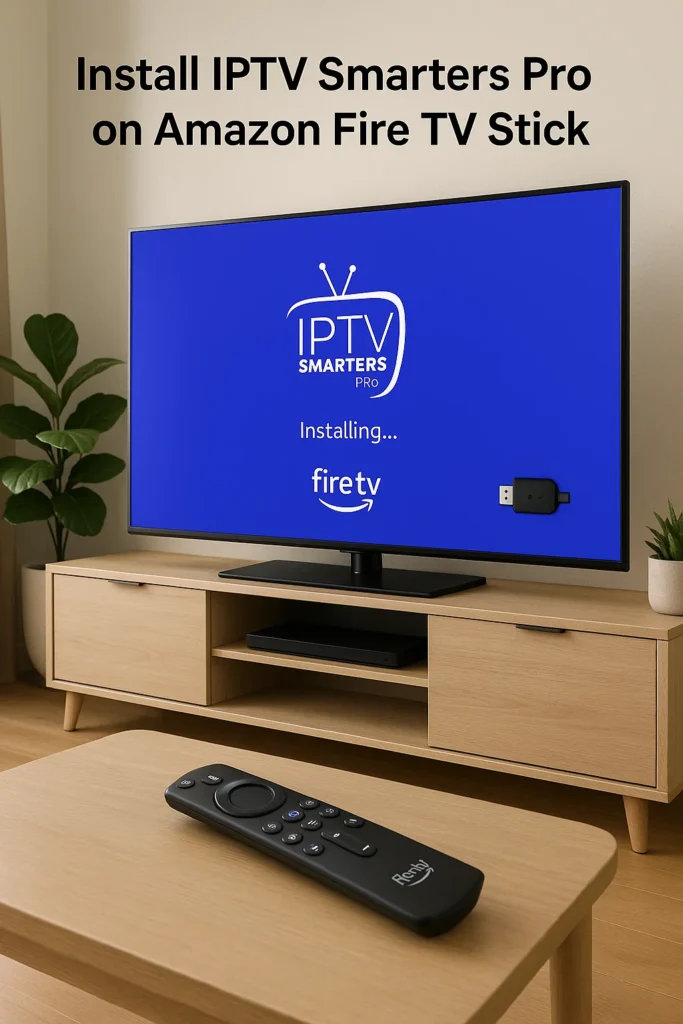
The Firestick costs around €30-35 on Amazon. This product will allow you to decrypt your favorite paid TV channels directly on your television for free, regardless of its brand, and without needing a set-top box or a paid commitment that would cost you a lot of money.
It’s also a very practical solution for people who travel a lot. It will allow you to take your TV channels with you wherever you are, whether on vacation, in hotel TVs, in caravans, or even when visiting relatives. Frankly, it’s great!
For your information, IPTV works everywhere in the world without exception. You’ll only need a stable and powerful internet connection (starting from 7 Mbps is already pretty good).
And of course, as you know, IPTV is a service that can be considered illegal in some contexts, but between us, it’s tolerated, and everyone uses it without any problems, whether here in Canada, France, Europe, or elsewhere. You just need to choose a quality IPTV subscription provider.
In this video, we’re going to prepare the Firestick by installing the IPTV applications, then we’ll easily activate a subscription in less than 5 minutes. Stay tuned!
Step 1: Prepare Your Firestick (Enable Developer Mode)
Alright, I’ve just started my Firestick. Of course, it’s already connected to the internet and plugged into my Samsung TV (the brand of the TV doesn’t matter).
To install applications other than those offered by Amazon, you need to activate developer mode.
- Access Settings:
- Go to
Settingson your Firestick.
- Go to
- Access “My Fire TV”:
- Find and select
My Fire TV.
- Find and select
- Activate Developer Mode:
- Go to
About. - With your remote, click the
OKbutton (the central button) seven times quickly. - This will activate developer mode, which allows you to install applications.
- Go back one step to see the
Developer Optionsthat have appeared.
- Go to
- Allow Apps from Unknown Sources:
- Access
Developer Options. - Enable the
Apps from Unknown Sourcesoption. It’s already done, perfect!
- Access
Step 2: Download and Install the Downloader App
Now, we need an application called Downloader.
- Search for Downloader:
- Go to your Firestick’s home page (Home).
- Access the page of applications offered by Amazon (the second to last box).
- Click
OKand go toApp Library. - Finally, look for
Downloader(it’s usually at the bottom, in orange).
- Download and Install Downloader:
- Click
Download. The application is very lightweight and fast; the download takes less than 2-3 seconds. The installation is automatic. - Once downloaded, click
Open. - Allow files downloaded by Downloader (this is essential). Click
Allow. It’s already done!
- Click
Step 3: Install IPTV Applications (IPTV Smarters Pro and Smart IPTV)
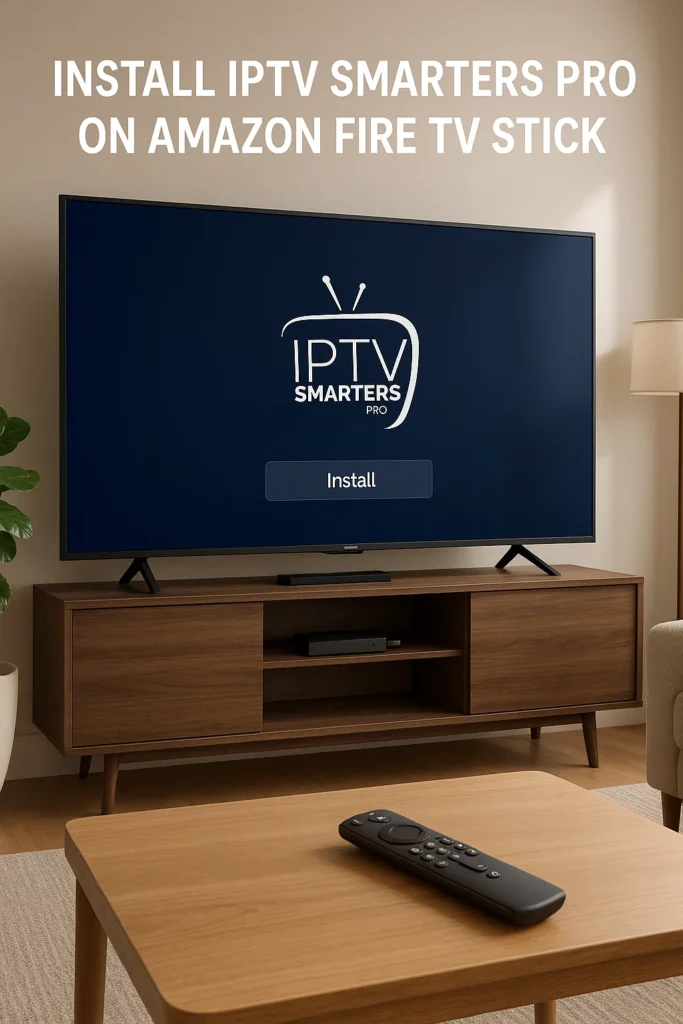
Now, let’s move on to the next step. The Downloader app interface appears. Forget the rest; all we’re interested in is the middle box. This is where we’ll enter our link. Don’t touch any of the other options.
- Enter the Download URL:
- In the search box, you’ll enter a URL that will allow you to install the applications. The URL will be provided in the video description (or this article).
- After entering the URL, the application download will start automatically, just like in the previous case of Smart IPTV. The application is very fast.
- Manage Downloaded Files:
- Once the download is complete, do not install it immediately! Click
Cancelat the bottom. - Then click
Donefor the notification. - Now, to install them, go to
Fileson the left. You’ll find the applications you just downloaded: IPTV Smarters and Smart IPTV.
- Once the download is complete, do not install it immediately! Click
- Install the Applications:
- To install IPTV Smarters Pro, click
OK. - Then click
Installat the bottom. The installation is automatic and takes a few seconds. - Do the same for Smart IPTV (the second application). Click
OK, thenInstall. It’s very fast.
- To install IPTV Smarters Pro, click
Step 4: Find and Organize Your IPTV Applications
Now that we’ve successfully installed our IPTV applications, it’s easy to find them.
- Access the App List:
- Click
Backor go to your Firestick’s home page. - Go to
Applications(Apps) in the menu. You’ll find the applications you just downloaded and installed there.
- Click
- Move Apps to the Front (for easy access):
- To move the applications to the home page and facilitate access later when starting your Firestick:
- Select the application (e.g., IPTV Smarters Pro).
- Click the
Menubutton (three horizontal lines) on your remote. - Choose
Move to front. - Do the same for Smart IPTV.
- Now, if you return to your Firestick’s home page, you’ll see the applications displayed at startup, which will make launching them much easier later on.
- To move the applications to the home page and facilitate access later when starting your Firestick:
Step 5: Activate Your IPTV Subscription (IPTV Smarters Pro)
Now, we’re going to launch Smart IPTV (or IPTV Smarters Pro).
- Retrieve MAC Code (for Smart IPTV):
- Launch the Smart IPTV application.
- All we’re interested in is the MAC code displayed on the startup interface. This MAC code must be given to your IPTV provider so they can install the subscription remotely.
- Alternatively, in the next part of this video, we’ll do it manually by purchasing a subscription and installing it on the official Smart IPTV website.
- Activate Subscription on IPTV Smarters Pro:
- When you launch IPTV Smarters Pro, you’ll find a form.
- Once the subscription is purchased, you’ll receive credentials (username, password, URL) by email.
- Copy and paste these credentials into the IPTV Smarters Pro app:
- Your playlist/subscription name.
- Username.
- Password.
- Server URL (host URL) you received by email.
- Validate with the
OKbutton on your remote. - Click
Add Userto access your subscription.
Step 6: Navigating the IPTV Smarters Pro Application
There you go, this is your subscription interface and also the startup interface of the IPTV Smarters Pro application. You have three main sections: Live TV, VOD (Movies), and Series.
- Update Playlists:
- Click
Downloadto download the playlists. It’s best to do this from time to time to keep them updated. It’s fast. - Do the same for movies and series.
- Click
- Access Live Channels:
- To access your subscription channels, click
Live TV. - You’ll see a startup channel (e.g., Canal Plus HD).
- The interface displays the names of the bouquets, in the middle the names of the channels in question, and finally the image on the right.
- To choose another bouquet (e.g., beIN Sports), select it.
- You’ll notice the zapping quality and image quality.
- You have the EPG (Electronic Program Guide) for the channels. To enlarge the image, click
OK. To return to your playlist, clickBack. - You have access to almost all channels in the world without exception: German, Spanish, Italian, Portuguese, Arabic, sports, African, American, Canadian, Asian channels. The subscription is truly comprehensive.
- You’ll find all the Amazon channels that broadcast the French Ligue 1.
- To access your subscription channels, click
- Access Movies (VOD):
- Click
Movies. - On the left, you’ll find movie categories, and on the right, the posters.
- Choose a random movie, and to start it, simply click
PLAYin the middle.
- Click
- Access Series (VOD):
- Click
Series. - As with movies, on the left, you’ll find categories, and the series are on the right, with episodes.
- Click
- Tip: Create a Favorite Playlist:
- Since you have many channels, you can create a favorite playlist.
- To do this, press and hold for 2-3 seconds on a channel (e.g., Canal Plus HD).
- Choose
Add to Favorites. You’ll notice a small heart to the right of the channel. - Do the same for other channels (e.g., Ciné+).
- To find your favorite playlist, go to the left, next to the playlist names, just above, you’ll find
Favorites. You can add as many channels as you want. This will make following them much simpler.
You can notice the richness of this subscription: sports channels, movie channels, HD, SD, Full HD quality, image resolution, speed – it’s truly perfect.