How to Install Apollo Group TV on Firestick: A Comprehensive Guide
Table of Contents
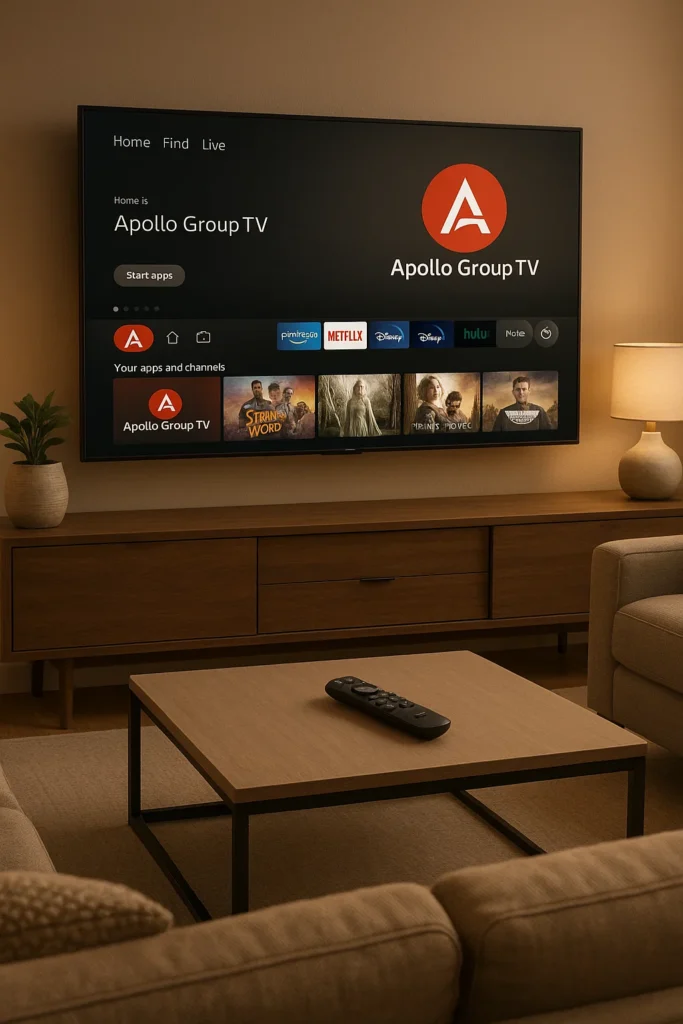
Hey there! In this guide, I’ll show you the easy way to install the Apollo Group TV application on your Firestick. The whole process is super straightforward and will only take you a couple of minutes.
1. Getting the Downloader App
First things first, you’ll need an app called “Downloader.” You can grab it for free from the official Amazon App Store or, if you’re on a different device, from the Google Play Store.
- How to get Downloader:
- Go to the search bar on your Firestick.
- Start typing “Downloader.” As you type, it should pop up for you at the bottom, so you might not even need to type the whole name.
- Click on “Downloader” and that’s the app you need to get onto your device.
2. Setting Up Developer Options on Your Firestick
Even after getting Downloader, we’re not quite done. We still need to configure some settings to allow the installation of applications from the internet, not just the official Amazon App Store.
- Accessing Settings:
- Go to
Settingson your device. - Scroll down and navigate to
My Fire TV.
- Go to
- Enabling Hidden Developer Options (If Necessary):
- On some Firesticks, especially newer models, “Developer Options” might be hidden by default. If you can’t find them:
- Go to
About. - Select
Fire TV Stick(or whatever your specific Fire TV device is named). - Now, quickly click the middle button on your remote seven times. Do it fast!
- You’ll see a message like “No need, you are already a developer” (if you’ve done it before) or “You have become a developer now.”
- Go back a step, and “Developer Options” will finally appear.
- Go to
- On some Firesticks, especially newer models, “Developer Options” might be hidden by default. If you can’t find them:
- Configuring Developer Options:
- Open
Developer Options. - Make sure to enable
ADB Debugging. - Go to
Install unknown apps. - Turn this option
ONfor theDownloaderapp. This allows Downloader to install other applications from outside the official app store.
- Open
3. Crucial Tip: Connect to a VPN for Safety and Privacy
Before you actually use Downloader, there’s one more thing I highly recommend doing: connecting to a VPN (Virtual Private Network).
- Why a VPN is Essential:
- Speed & App Quality: I personally use NordVPN because they are super fast and have a great application for Firesticks, Android TVs, phones, laptops, and pretty much any device you may have. They can cover all your devices simultaneously, which is amazing.
- Enhanced Security: From the moment you connect to a VPN (e.g., to a server in Greece), all your internet traffic becomes totally encrypted. This means nobody can track or snoop on you online, which is extremely important if you wish to stay out of trouble.
- Affordability: Their premium service costs less than a cup of coffee per month, which is fantastic news for us users!
- Exclusive NordVPN Offer:
- If you don’t have a VPN yet but would like to try it out, I have a great offer for you! If you use my link (which will be in the pinned comment below the video or in the description of this article), you’ll get four months of NordVPN totally for free! This is an amazing deal, so go get those four free months and then use Downloader safely.
4. Downloading the Apollo Group TV Application
Now that Downloader is set up and your VPN is active, we can finally proceed to download Apollo Group TV.
- Opening Downloader:
- Safely open the Downloader application.
- On the left-side menu, make sure to click on
Home. This is important. - You’ll see a search bar where you’ll enter a specific link.
- Entering the Download Link:
- The exact link you need to enter is:
ap.power.tv - Crucially, make sure to enter this link exactly as you see it. Do not make any mistakes, because if you do, the link obviously won’t work.
- After entering the link, click on
Go.
- The exact link you need to enter is:
- Finding the Download Button:
- In a couple of seconds, a website will open.
- You’ll need to scroll down the website until you see the download buttons. They might not be very visible because, for some reason, they used a white font on a gray background, which isn’t ideal.
- Look for the option that says
Android TV. This is the version we’re looking for. - Click on
Download Android TV version. It doesn’t matter that you’re using a Firestick; it’s based on Android anyway, so we need the Android version for our device.
- Starting the Download:
- Click on
Download. The download should start. It usually doesn’t take long, but of course, it depends on your connection speed.
- Click on
5. Installing Apollo Group TV
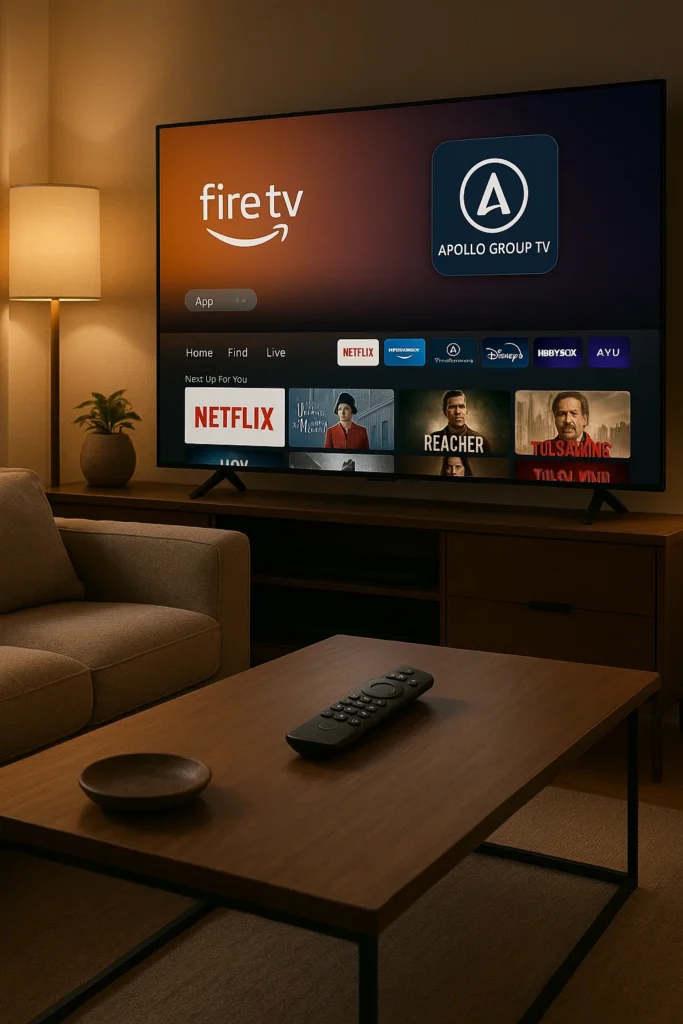
Once the download is complete, it’s time to install the app.
- Initiating Installation:
- Once the download is ready, click on the
Installbutton right there. - In a couple of seconds, the Apollo Group TV application will be installed on your Firestick.
- Once the download is ready, click on the
- Important Post-Installation Step: Delete the Installation File:
- After installation, you’ll see options to “Open” or “Done.” I highly recommend clicking on
Doneinstead of “Open.” - This will give you the option to
Deletethe installation file, as we don’t need it anymore. - Click
Delete, and thenDeleteonce again. This way, you’ve erased the unnecessary installation file from your device, freeing up memory on your Firestick.
- After installation, you’ll see options to “Open” or “Done.” I highly recommend clicking on
6. Locating and Organizing the Apollo Group TV App
Now that Apollo Group TV is installed, let’s make it easy to access.
- Finding the App:
- Click the
Homebutton on your remote. - Go to the list of applications on your Firestick.
- Scroll down, and you’ll find the Apollo Group TV application that you just installed.
- Click the
- Moving the App to the Front:
- I recommend clicking the
Optionsbutton on your remote (the button with three horizontal lines). - Then, press
Move to front. - This way, the Apollo Group TV application will always be at the very top of your application list, making it really easy for you to access it every time you need it.
- I recommend clicking the
7. Logging In and Final Reminders
- Opening and Logging In:
- Finally, you can open the Apollo Group TV app.
- To log in, you’ll need to use the email address or username you used to create an account with Apollo Group TV, and of course, enter your password as well.
- Don’t Forget Your VPN!
- Once again, don’t forget to use your VPN to stay safe and private online. Remember, you can get four months of NordVPN for free using the link in the pinned comment below.
8. How to Uninstall Apollo Group TV (If Needed
If at some point you decide to delete the Apollo Group TV app:
- Select the application from your app list.
- Click on the
Optionsbutton on your remote. - Click
Uninstall. - Click
Uninstallonce again. - Then, click
OK.
And pretty much, that’s the full guide for you! I hope it was helpful, and I’ll see you next time. Bye-bye!